OpenClaw browser status says unknown method: browser.request on macOS?
If a macOS OpenClaw upgrade leaves openclaw --version looking current but openclaw browser status
fails with unknown method: browser.request, do not start with browser plugin guesswork. First check whether your
interactive CLI and the background Gateway service are running from different OpenClaw installs.
Compare the OpenClaw binary your shell runs with the command registered in macOS launchd for the Gateway service. If they point to different paths or versions, reinstall the Gateway service through documented OpenClaw commands, restart it, then rerun browser status.
- GitHub issue openclaw/openclaw#57079 reports a macOS browser status failure after upgrade where mixed CLI and Gateway installs were identified and
openclaw gateway installrestored browser status. - Treat that report as a high-signal diagnostic pattern, not proof that every browser plugin warning has the same root cause.
Why the error message points people in the wrong direction
The visible failure mentions a browser request method, so it is natural to inspect browser plugin configuration first. On macOS,
though, OpenClaw often has two relevant execution contexts: the command you run in your terminal and the Gateway process launched by
launchd. After an upgrade, reinstall, or path change, those contexts can drift.
When the CLI writes or expects newer browser configuration but launchd starts an older Gateway, the Gateway can reject a method the newer CLI expects. That makes a service-registration problem look like a browser feature problem.
Symptoms that fit Gateway service drift
openclaw --versionreports the version you expected after upgrade.openclaw browser statusfails withunknown method: browser.request.- Browser plugin warnings appear even though browser settings were not the thing you changed.
- The Gateway keeps running from a path that belongs to an older package manager, old checkout, or stale install.
- Restarting the browser alone does not change the error.
Safe diagnostic path
1. Capture the CLI identity
Record the active binary path and version from the same shell where you reproduce the browser status error. Use whatever command is
standard in your environment, such as which openclaw and openclaw --version.
2. Inspect the Gateway service command
Inspect launchd service metadata and logs before editing files. You want to know the label, command, working directory, and environment that launchd uses for the Gateway. The important question is whether launchd invokes the same OpenClaw install that your shell uses.
3. Run deeper health checks where available
If your installed version supports them, run openclaw gateway status --deep and openclaw doctor. These checks
can expose mismatched service state, stale paths, and configuration drift without requiring manual plist edits.
4. Reinstall the Gateway service through OpenClaw
Prefer openclaw gateway install or the documented forced reinstall flow for your version. That lets OpenClaw write the
service definition it expects. Manual launchd surgery should come after backups, path confirmation, and a clear rollback plan.
5. Restart and verify the exact browser path
After reinstalling the service, restart the Gateway and rerun openclaw browser status. Then run one real browser action,
not only a status command, so you know the method error is gone and the browser sidecar is reachable.
Stop babysitting your OpenClaw box
Fix it once — or stop fixing it for good.
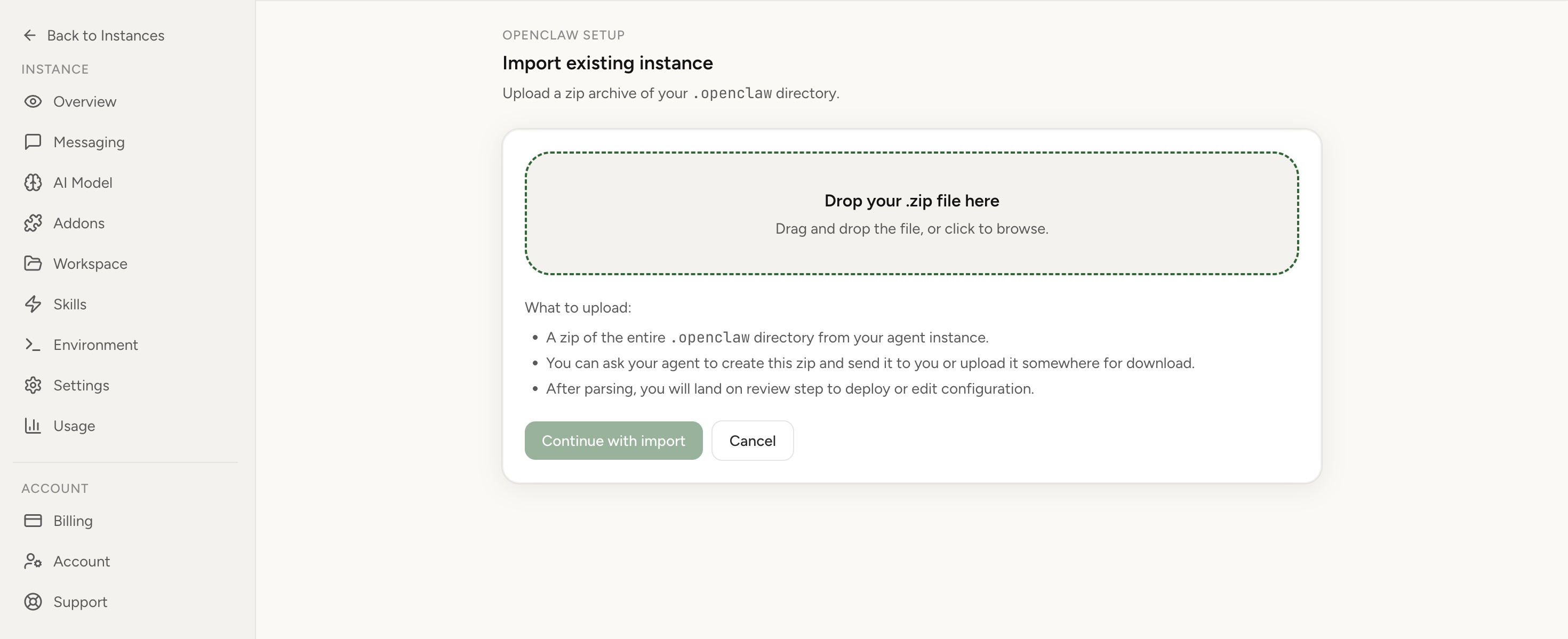
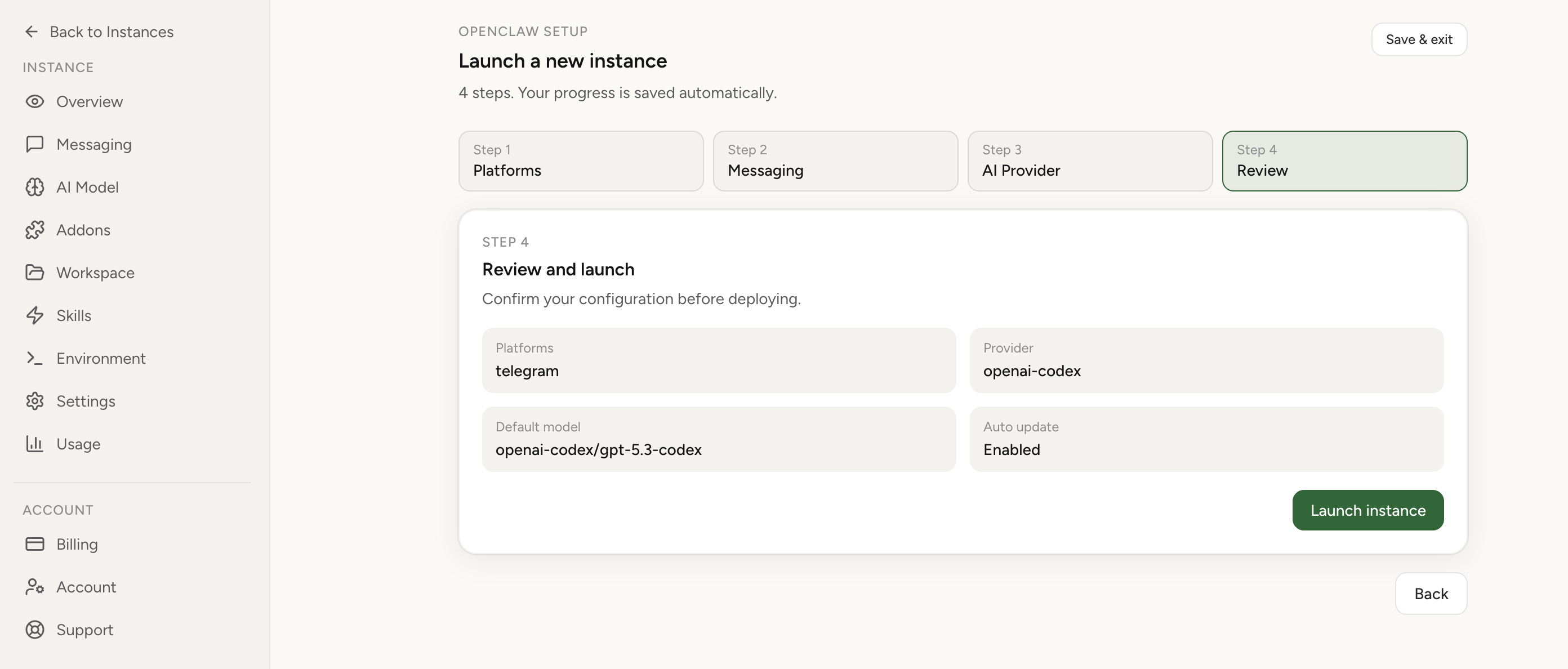
Apply the checklist above and keep self-hosting, or skip the maintenance entirely: run your OpenClaw on managed hosting from $6.90/mo, starting with a 7-day free trial. We handle the stale locks, gateway restarts, version upgrades, and uptime — and you can import your existing instance in a couple of minutes. Cancel anytime.
- Managed hosting handles stale
.jsonl.lockfiles, gateway restarts, and version upgrades for you - Import your existing OpenClaw setup in minutes — keep your channels and configuration
- The optional $199 setup is scoped: no custom development, enterprise/SRE support, or unsupported self-hosting repair
If you would rather compare options first, review OpenClaw cloud hosting or see the best OpenClaw hosting options before deciding.
What not to do first
- Do not randomly delete browser profiles before confirming the Gateway binary path.
- Do not copy another machine's launchd plist into production.
- Do not assume terminal success proves the background service is current.
- Do not leave multiple package-manager installs on the path without documenting which one owns Gateway.
Why managed hosting avoids this class of drift
Lobsterland owns the hosted Gateway lifecycle, browser sidecar configuration, and runtime restart path. That does not remove every possible browser failure, but it does remove the common macOS problem where your shell and launchd quietly disagree about which OpenClaw install is production.
Related Lobsterland guides
- OpenClaw browser tool timeout fix
- OpenClaw Desktop Chrome session attach failure fix
- OpenClaw with browser
- Managed OpenClaw hosting