Make OpenClaw browser automation useful after a fresh install
Problem statement: you installed OpenClaw, enabled browser automation, and asked the agent to use a page. Instead of opening the page and acting on it, the agent tries command shapes that the current CLI does not support, fails to read the right help output, burns context, and leaves you wondering whether the browser feature is broken.
A recent r/openclaw thread captured the failure mode clearly: a fresh Linux install struggled because the browser automation skill referenced an unsupported action option, while the user only got reliable behavior after replacing that guidance with the current browser CLI documentation. The useful lesson is not "copy one file from Reddit." The useful lesson is that browser automation has to be verified as a control plane before you ask an agent to improvise on a real website.
- A May 25 community report describes a fresh OpenClaw install where the browser skill directed the agent toward command forms that the CLI rejected.
- The same report says the agent succeeded after the browser instructions were replaced with the current CLI-oriented flow: open a page, click a cookie banner, and verify the banner was gone.
- OpenClaw's current browser reference centers on profile selection,
doctor,start,tabs,open, snapshots, refs, and profile-specific limits, not a genericaction="..."command pattern. - OpenClaw Setup's hosted browser sidecar work found the same broader pattern in production: browser reliability improves when the runtime has a known profile, a reachable CDP endpoint, a restart-safe profile path, and a simple smoke test before complex workflows start.
What is actually failing
Browser automation can fail at four different layers, and they look similar from the chat window:
- Instruction mismatch: the agent's skill or prompt tells it to use commands that are not supported by your installed CLI.
- Browser lifecycle failure: the browser process is not started, the profile is not reachable, or CDP is not ready.
- Targeting failure: the browser opens, but the agent uses a stale tab id, raw target id, CSS selector, or guessed action instead of a current snapshot ref.
- Website failure: the browser control plane works, but the target site has a cookie banner, dialog, captcha, blocked navigation policy, or slow client-side app state.
Most fresh-install debugging goes wrong because users jump straight to the fourth layer. They ask the agent to operate a real dashboard, the agent fails, and then they chase website-specific explanations. Start lower. Prove the command vocabulary, browser lifecycle, and targeting model first.
The safe baseline sequence
Use this sequence before asking OpenClaw to operate an authenticated app. It is intentionally boring. A boring smoke test is how you separate platform failure from website failure.
openclaw browser --browser-profile openclaw doctor
openclaw browser --browser-profile openclaw start
openclaw browser --browser-profile openclaw tabs
openclaw browser --browser-profile openclaw open https://example.com --label smoke
openclaw browser --browser-profile openclaw snapshot
If that sequence fails, do not continue into a production workflow. Fix the browser profile first. If it passes, add one visible action: click a link or button from the snapshot, type into a form field, then take another snapshot and verify the page state changed.
Step-by-step fix
1) Confirm the bundled browser plugin is enabled
If openclaw browser is missing entirely, the issue is not browser automation quality. It is plugin availability. Check your OpenClaw configuration for a restrictive plugin allowlist. If you use one, the browser plugin must be allowed, or a root browser configuration must activate the bundled browser support.
The common mistake is allowing messaging plugins, model providers, or custom skills while forgetting that browser control is also a plugin-backed capability. The agent can have a browser skill in the workspace and still lack a working browser command surface.
2) Replace stale browser instructions with CLI-shaped instructions
The browser skill should teach the agent the command surface it can actually use. A reliable instruction block should mention profiles, lifecycle, tabs, snapshot refs, navigation, clicks, typing, screenshots, console logs, downloads, dialogs, and profile limitations. It should not ask the agent to invent a generic action parameter and hope the runtime accepts it.
For practical use, the important behavior is this: the agent should inspect the browser state before acting, use snapshot refs when available, prefer stable tab labels or suggested target ids over raw target ids, and verify after each meaningful action. Those rules save more time than adding another paragraph of abstract browsing advice.
3) Pick the right profile before testing
OpenClaw browser automation is profile-driven. The profile decides whether OpenClaw launches an isolated managed browser, attaches to a user's existing Chrome session, or talks to a remote CDP endpoint. A fresh install usually works best with the dedicated openclaw profile because it avoids the ambiguity of your personal browser state.
- Use
openclawfor smoke tests: it gives you a clean browser surface and fewer local profile surprises. - Use
useronly when needed: it is useful for already-authenticated local Chrome sessions, but it inherits local browser complexity. - Use custom CDP profiles for remote browser hosts: this is the right fit for Browserless-style infrastructure or a browser sidecar.
4) Start with simple pages, not logged-in apps
Test against a simple public page first. The purpose is to prove that OpenClaw can open a page, produce a snapshot, target a visible element, run an action, and verify the result. Once that works, move to a page with a cookie banner. Only then test a logged-in application.
This progression matters because logged-in apps add moving parts: session cookies, redirects, account prompts, anti-automation checks, slow JavaScript, iframes, modals, and role-specific UI. If the smoke test is not clean, those app details will hide the real problem.
5) Use snapshots as the source of truth
The agent should not guess selectors from page text. It should take a snapshot, find the relevant ref, act on that ref, and take another snapshot. This is especially important after navigation or form submission because the underlying browser target can change while the user-facing tab still looks like "the same page."
For durable workflows, labels are better than memory. Open the page with a label, focus the label when needed, and keep passing the stable target that the browser command returns. Raw target ids are useful for debugging, but they are too volatile to anchor long-running procedures.
6) Separate browser failures from website failures
After the browser smoke test works, failures on real websites should be diagnosed as website interactions. A cookie banner that blocks clicks is not the same problem as a missing browser plugin. A captcha is not the same problem as a broken profile. A page that never reaches network idle is not the same problem as CDP being unreachable.
When you keep those categories separate, the recovery path becomes obvious: fix configuration for profile failures, update skill instructions for command mismatch, change targeting for stale refs, and redesign the workflow when the site itself blocks browser automation.
Stop babysitting your OpenClaw box
Fix it once — or stop fixing it for good.
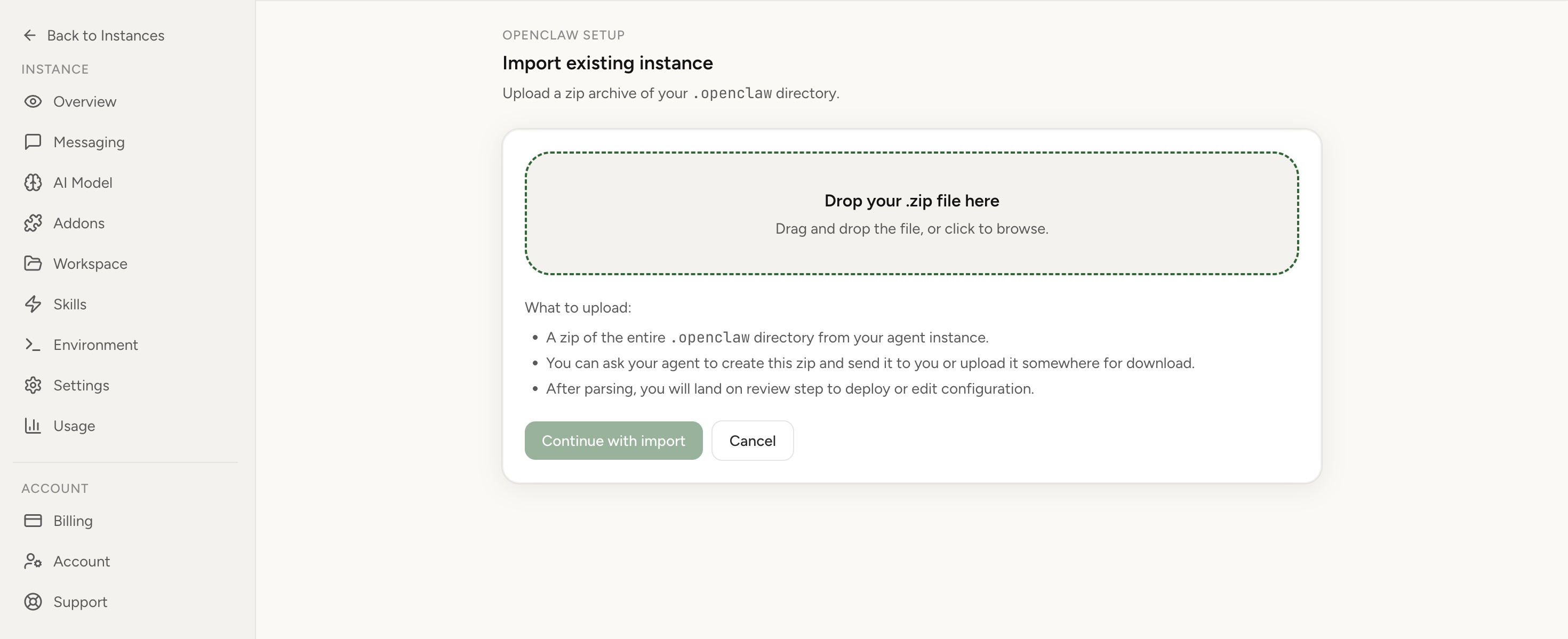
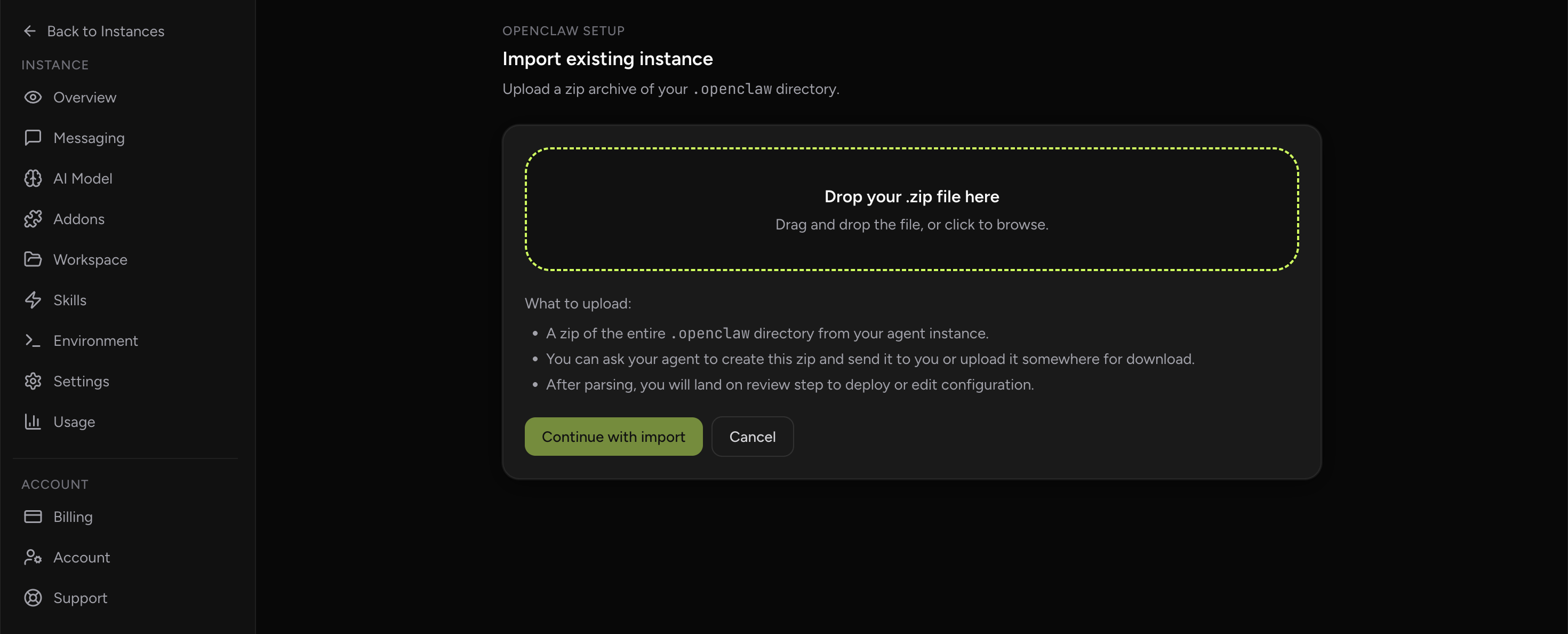
Apply the checklist above and keep self-hosting, or skip the maintenance entirely: run your OpenClaw on managed hosting from $6.90/mo, starting with a 7-day free trial. We handle the stale locks, gateway restarts, version upgrades, and uptime — and you can import your existing instance in a couple of minutes. Cancel anytime.
- Managed hosting handles stale
.jsonl.lockfiles, gateway restarts, and version upgrades for you - Import your existing OpenClaw setup in minutes — keep your channels and configuration
- The optional $199 setup is scoped: no custom development, enterprise/SRE support, or unsupported self-hosting repair
If you would rather compare options first, review OpenClaw cloud hosting or see the best OpenClaw hosting options before deciding.
Diagnostics by symptom
| Symptom | Likely cause | Best next step |
|---|---|---|
openclaw browser is unknown | Browser plugin is not enabled or allowed | Check plugin allowlist and root browser config |
| Agent tries unsupported command options | Stale or generic browser skill guidance | Update the skill to match current browser CLI commands |
| Doctor passes, but open or navigate fails | Navigation policy, SSRF guard, or target URL issue | Test a simple public URL, then inspect policy and URL handling |
| Snapshot works, click fails | Wrong ref, stale snapshot, dialog, or overlay | Take a fresh snapshot and handle visible banners or dialogs first |
| Local Chrome auth state is missing | Using isolated profile instead of user or existing-session profile | Choose the right profile; avoid copying browser cookies by hand |
| Long task fails after several actions | Stale target, page replacement, timeout, or unverified state transition | Label tabs, snapshot after each action, and verify before continuing |
Typical mistakes
- Letting the agent improvise command syntax: browser automation is not a place for loose guessing. Give the agent exact command patterns and force it to inspect help only when the help path is known to work.
- Testing against a complex dashboard first: prove the control plane on a simple page before you add authentication, client-side routing, and overlays.
- Skipping profile selection: the default profile may not be the profile you intend. Be explicit until your setup is stable.
- Using raw target ids as durable anchors: navigation can replace the underlying target. Use labels and suggested target ids instead.
- Not verifying final state: a click command succeeding does not mean the task succeeded. Always snapshot or inspect the page after the action.
- Copying local browser state into managed profiles: cookie copying is fragile and risky. Use a real local-browser profile when the workflow needs local auth, or use a hosted browser profile when the workflow belongs to the managed runtime.
When managed hosting is the cleaner answer
Fixing a stale browser skill is straightforward. Keeping a browser-capable OpenClaw stack reliable over weeks is a different job. The runtime needs a browser process, a profile directory, a viewer or attach path, restart behavior, TLS, logs, and a way for the owner to recover when the browser state gets stuck.
OpenClaw Setup's Hosted Browser handles that by running a browser sidecar with the managed instance. The agent attaches over pod-local CDP, while the owner opens the visual browser through the authenticated dashboard. For workflows that need your local signed-in Chrome, the Chrome Extension relay remains the better fit. For teams choosing between local control and managed uptime, the practical comparison is in OpenClaw managed vs self-hosted and OpenClaw cloud hosting.
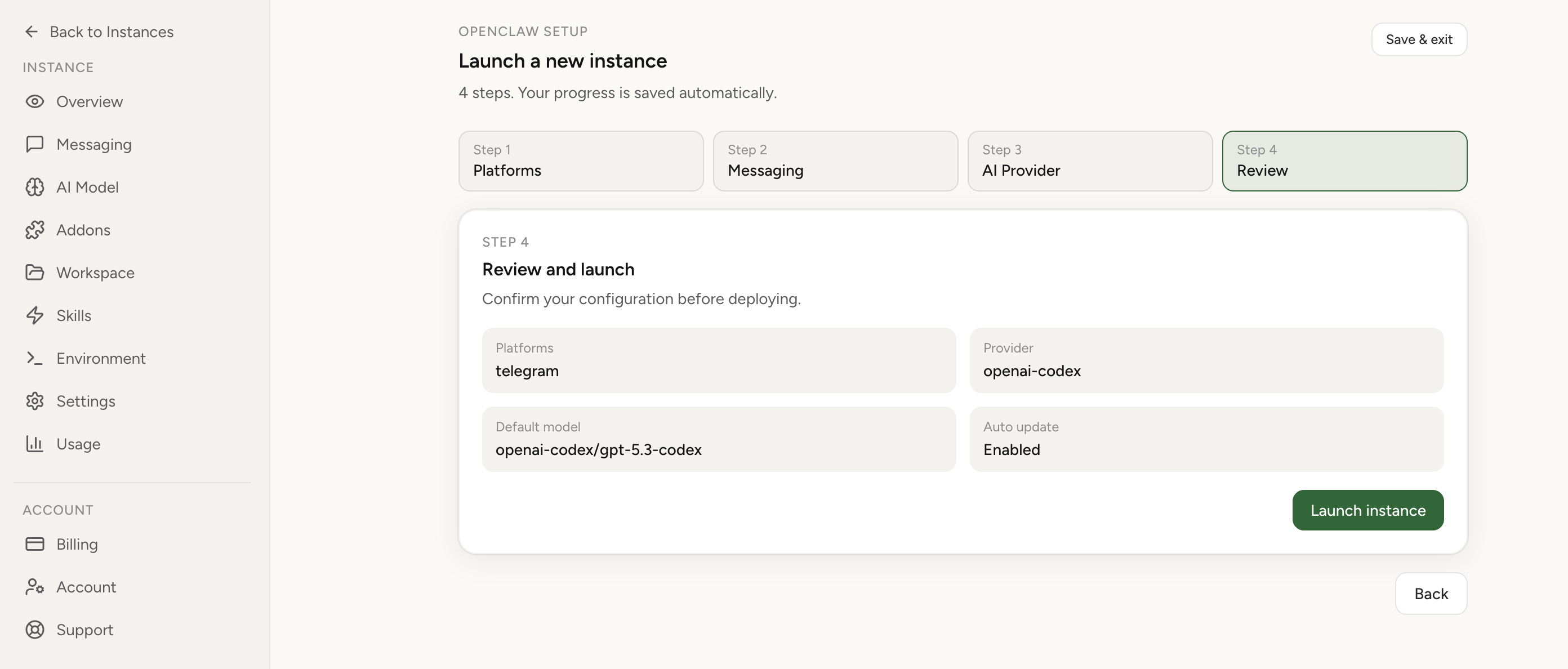
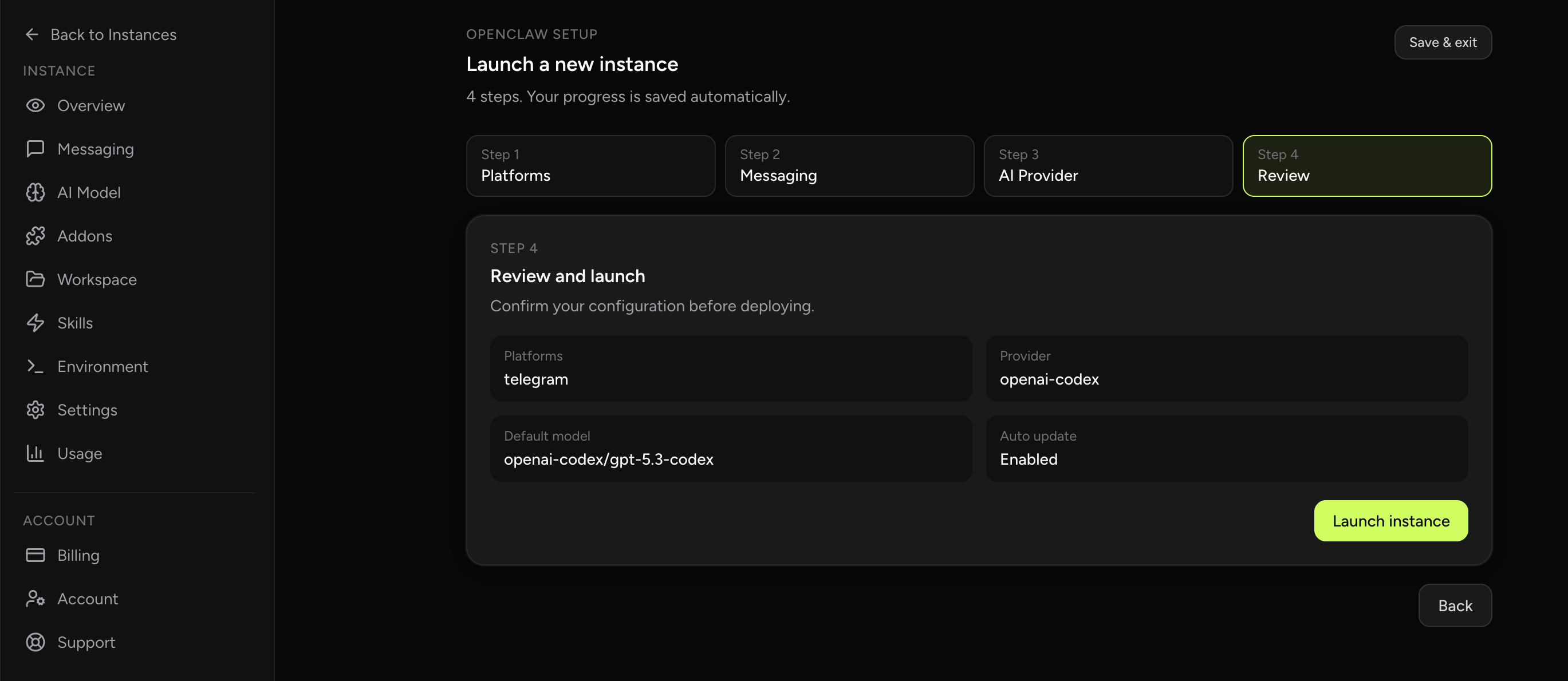
If your browser workflows are useful but the local setup keeps turning into maintenance work, create or import an instance inOpenClaw Setup. Use Hosted Browser for always-on workflows, Chrome Extension relay when you need your own local browser, and managed runtime defaults when you want fewer moving parts.
Result verification checklist
Before you call browser automation fixed, verify the full path end to end:
openclaw browser --browser-profile openclaw doctorsucceeds.- The intended browser profile starts or attaches without a reachability error.
tabsreturns a current tab list with a stable suggested target.opencan load a simple public page.snapshotreturns refs the agent can act on.- A click, type, or wait action changes visible page state.
- A second snapshot confirms the expected result.
- The agent's browser skill no longer suggests unsupported command shapes.
FAQ
Is the browser automation skill supposed to be enough by itself?
It should be enough to guide the agent, but it is not a substitute for a working browser control plane. If the skill is stale, the agent may confidently choose invalid commands. If the control plane is broken, even perfect instructions will fail. Fix both sides: current instructions and a verified profile.
Should I edit SKILL.md manually?
Manual edits are acceptable if you know what you are changing and keep a backup. For team use, treat the browser skill as operational documentation: version it, review it, and keep it aligned with the current CLI. Do not paste unreviewed instructions from random examples into a production agent workspace.
Why does the agent fail to read help output?
Some failed command paths point to help text that does not resolve to the detailed subcommand help the agent needs. Avoid relying on trial-and-error help discovery. Give the agent known-good command patterns for the browser actions you expect it to perform.
Does this apply to Docker and remote servers?
Yes, but remote setups add profile and display constraints. On headless Linux, local managed profiles may run headless automatically. For remote browsers, use a CDP profile or a node host proxy rather than assuming your local Chrome session is visible from the gateway.
What should I do if captchas or anti-bot pages appear?
Treat that as a website-level block, not a browser setup bug. The clean answer is usually to use the site's API, a human-assisted browser flow, or a workflow that avoids repeated automated login attempts. Browser automation should operate real workflows; it should not become a captcha-fighting project.