OpenClaw agent will not write files on Ubuntu: workspace and permission checks before reinstalling
Problem statement: your OpenClaw agent can chat, inspect context, or plan changes, but it refuses to write files or the saved files never appear where you expect. On Ubuntu, this is usually a workspace, permission, sandbox, or container-volume problem. Check those before reinstalling.
- Do not delete
~/.openclaw, memory files, cron jobs, credentials, or provider auth stores as a first move. - Do not run broad permission changes across your home directory.
- Find the actual workspace path and the Linux user running the OpenClaw process.
Confirm the current workspace path
The most common failure is simple: the user expects writes in one folder while the agent is operating in another. Ask the agent to print its working directory, then verify the path directly from your shell. If OpenClaw runs as a service, remember that the service user may not share your interactive shell's home directory or project path.
- Check the path the agent says it is using.
- Check the path from the server shell as the same user that runs OpenClaw.
- Create one harmless test file manually in that directory.
- Ask the agent to edit that exact file and verify the timestamp changed.
Check Linux ownership and permissions
- Owner mismatch: files owned by
rootor another deploy user may be read-only to the OpenClaw process. - Directory execute bit: the agent needs traversal permission on every parent directory, not only write permission on the final folder.
- Repository locks: generated files may fail if the repo is inside a protected mount or owned by another user.
- Container volumes: Docker paths can look writable inside the container but not persist to the expected host folder.
- Read-only mounts: cloud images and backup restores sometimes remount workspaces read-only after errors.
Check sandbox and tool access
A file-write failure is not always a Linux permission bug. Some agent profiles are intentionally sandboxed, or the session may have read-only tools available but no write tool. Confirm whether the active agent can use file-write operations in the target workspace and whether approval settings are blocking writes.
If write access works in one session type but not another, compare the agent profile, channel, sandbox mode, current directory, and available tools. That is safer than changing system permissions globally.
Recovery checklist
- Snapshot config and the workspace before repairs.
- Find the OpenClaw runtime user and current workspace path.
- Fix ownership only on the intended project/workspace directory.
- Verify a manual write, then an agent write, then a restart-persistent write.
- Only reinstall if the runtime itself is corrupt and you have preserved credentials, memory, and cron state.
When managed hosting is the better fix
Non-expert teams should not have to debug Linux users, Docker mounts, SSH sessions, and persistent volumes just to get an agent to save a file. Lobsterland gives OpenClaw users a managed workspace, hosted instance lifecycle, and a dashboard path for settings that are easy to misconfigure by hand.
If you still want to self-host, start with the OpenClaw Docker setup guide. For team workflows, review workspace management and managed OpenClaw hosting for non-technical users. If your issue involves uploads rather than writes, use the file attachment troubleshooting guide.
Sources
Stop babysitting your OpenClaw box
Fix it once — or stop fixing it for good.
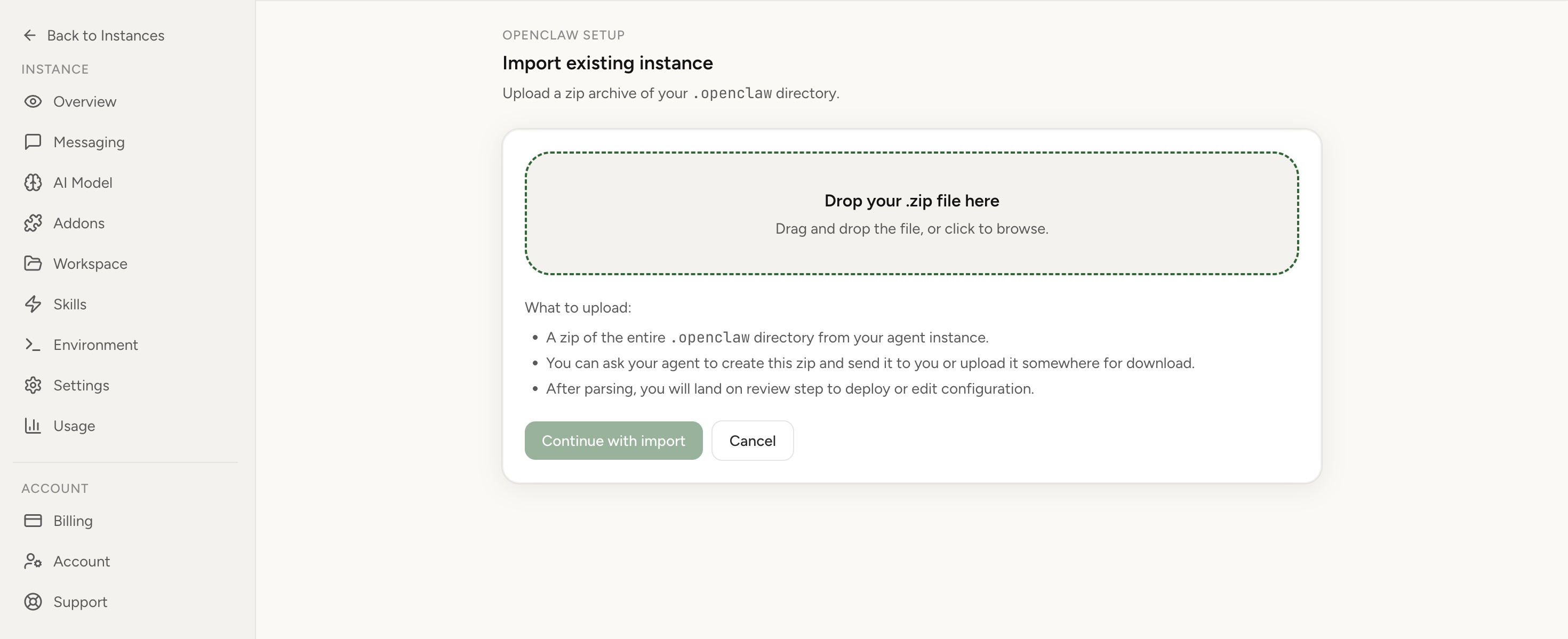
Apply the checklist above and keep self-hosting, or skip the maintenance entirely: run your OpenClaw on managed hosting from $6.90/mo, starting with a 7-day free trial. We handle the stale locks, gateway restarts, version upgrades, and uptime — and you can import your existing instance in a couple of minutes. Cancel anytime.
- Managed hosting handles stale
.jsonl.lockfiles, gateway restarts, and version upgrades for you - Import your existing OpenClaw setup in minutes — keep your channels and configuration
- The optional $199 setup is scoped: no custom development, enterprise/SRE support, or unsupported self-hosting repair
If you would rather compare options first, review OpenClaw cloud hosting or see the best OpenClaw hosting options before deciding.