Can I test a cron job manually?
Yes. You can run a job manually from the dashboard to validate the payload and delivery behavior before waiting for the next scheduled execution.
Schedule recurring work, run jobs manually, and manage cron-based automation from the dashboard instead of stitching it together in the shell.
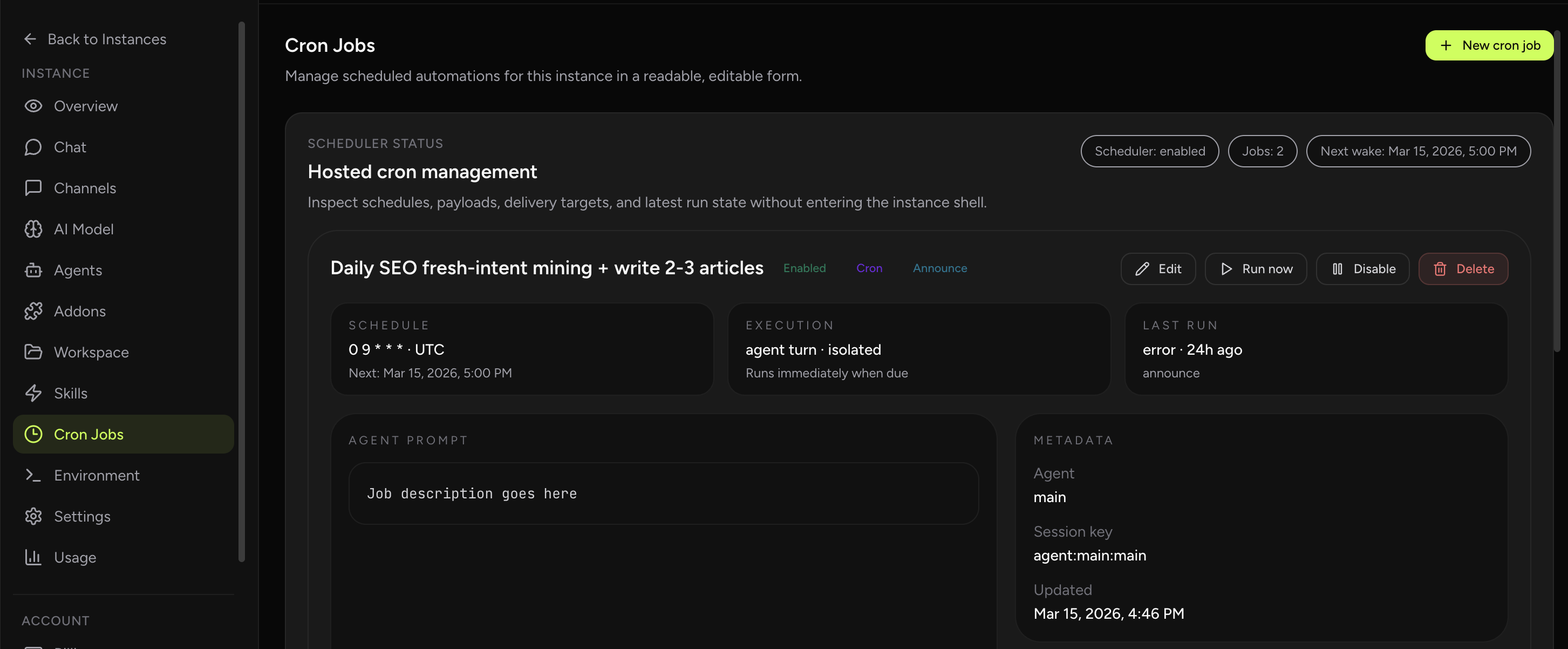
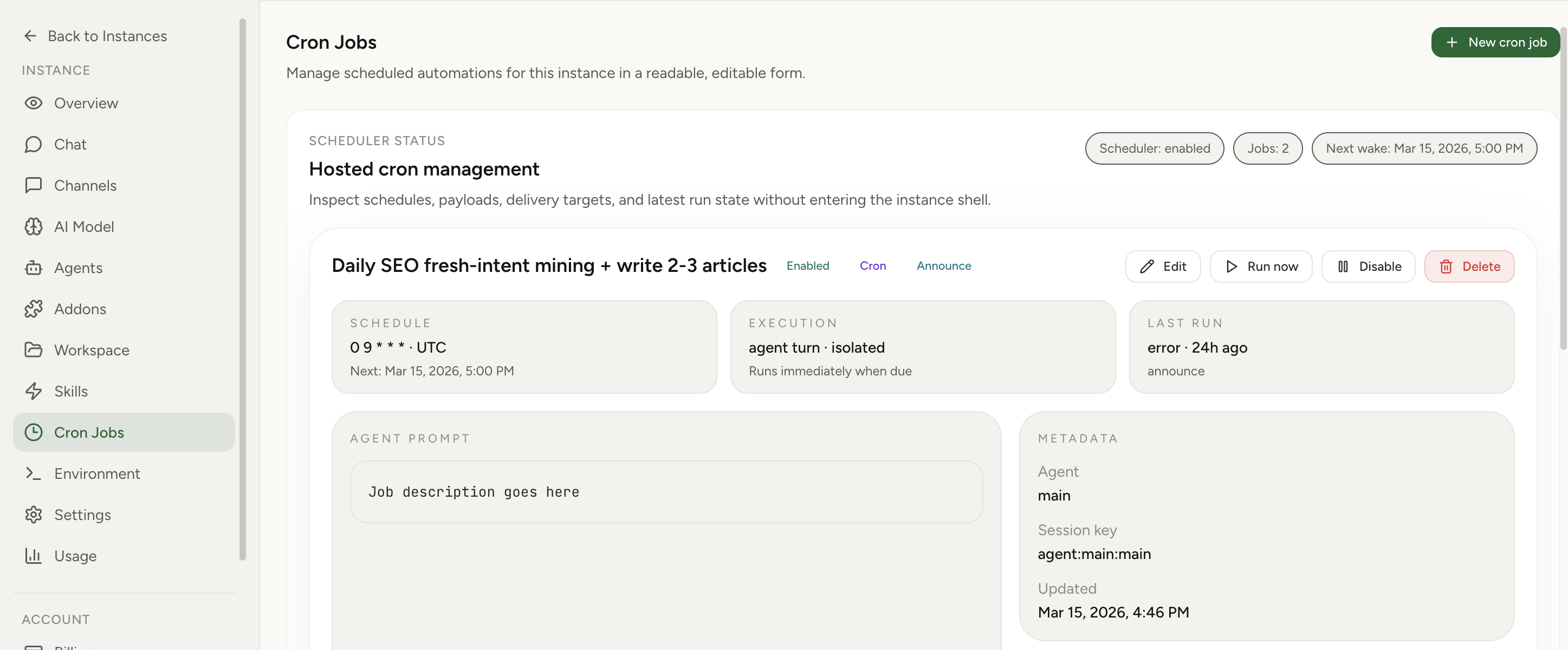
Lobsterland now exposes hosted cron management directly in the instance Overview tab. Instead of dropping into the instance shell or editing Gateway cron storage manually, you can inspect schedules, payloads, session targets, delivery targets, and recent run state in one readable interface.
OpenClaw cron docsAlways-on agent stack without burnoutCron queue troubleshootingRun-now timeout fix
Real product screenshot
Use cron jobs for recurring reports, reminders, checks, and proactive assistant behavior that should happen without a manual prompt each time.
The dashboard turns those jobs into something readable: you can see the schedule, choose the execution lane, update the payload, test a run, and confirm the latest result from one place.
A job can run once at a set time, repeat on a fixed interval, or follow a full cron expression for precise calendars like every weekday at 9am. Scheduling is timezone-aware, so a morning report fires in your local morning rather than in UTC.
Pick the simplest schedule that fits: a one-time job for a single future action, an interval for steady polling, and a cron expression when you need specific days and times.
Each job chooses where it runs and what it sends. The session target can be the main session, an isolated session that does not touch ongoing context, the current session, or a custom named one, with a wake mode for how it engages the assistant.
The payload is either an agent turn — a prompt the assistant reasons over, with optional model, thinking, and timeout overrides — or a system event for lighter triggers. Results can be announced to chat, kept internal, or posted to a webhook, so the same job form covers both visible reports and quiet background automation.
You do not need to manage cron storage files or hand-written gateway payloads just to keep scheduled work running. The hosted UI covers the common lifecycle: create, edit, enable, disable, run, and delete, while also exposing the core execution choices directly.
That includes wake mode, payload type, agent selection, announce vs internal vs webhook delivery, and visible last-run or delivery errors when a job has problems.
When something does go wrong, the linked troubleshooting guides are there for the incident path while this page stays focused on the normal operating flow.
Common uses are recurring summaries like a morning briefing or end-of-day report, scheduled reminders, periodic checks that watch something and message you only when it changes, and proactive assistant behavior that should happen on a clock instead of waiting for a prompt. Because delivery can target chat or a webhook, the same scheduler drives both human-facing updates and machine-to-machine automation.
If you are building toward an assistant that runs around the clock, scheduled jobs are one half of the picture; the other is keeping the workload sustainable. Our guide on an always-on agent stack without burnout covers how to combine cron automation with sensible limits so a 24/7 assistant stays useful instead of noisy.
Yes. You can run a job manually from the dashboard to validate the payload and delivery behavior before waiting for the next scheduled execution.
That you can run OpenClaw scheduled work from a readable dashboard that exposes schedule, session, payload, delivery, and run-state controls instead of stitching them together from storage files and shell commands.
One-time runs, fixed intervals, and full cron expressions. Scheduling is timezone-aware, so jobs fire relative to your local time rather than UTC.
Yes. A job can announce its result to chat, keep it internal, or post it to a webhook, all configured from the same job form.
Yes. Jobs can be enabled or disabled from the dashboard, so you can pause a schedule temporarily and re-enable it later without recreating it.
The dashboard surfaces the latest run state and delivery errors, so you can see when a job had a problem and use the linked troubleshooting guides to resolve it.