How to remove, reset, or fully uninstall OpenClaw on Mac, Linux, and Windows
Use this guide when you want to remove OpenClaw completely, reset a broken local install, delete sessions, or migrate away from local hosting without leaving credentials and workspace files behind. Fully removing OpenClaw requires more than deleting an application folder: you need to account for the gateway service, configuration files, session history, provider credentials, and workspace data.
Before you wipe your installation, decide whether you need your agent's memory. Local uninstalls are destructive by default. If you simply want to stop the bot without giving it amnesia, scroll to the Managed Advantage section below.
Reset vs uninstall: choose the right cleanup path
If OpenClaw is misbehaving but you still trust the machine, start with a reset: stop the gateway, clear sessions, and remove the configuration that is causing the failure. If you are selling the device, rotating credentials, or moving operations to managed OpenClaw hosting, use the full uninstall path and verify no secrets remain.
| Goal | Keep | Remove |
|---|---|---|
| Reset a broken install | Workspace files and useful memory exports | Corrupt sessions, stale gateway state, bad channel config |
| Delete local secrets | A separate backup with secrets removed | Provider keys, Telegram/Slack tokens, browser profiles, credential files |
| Fully uninstall OpenClaw | Nothing unless you made an offline export first | Services, config, sessions, memory, workspace, local command shims |
Where does OpenClaw store data?
By default, OpenClaw is "self-contained" within your user profile. If you are cleaning up manually, look for these three main components:
🧠 State & Memory (~/.openclaw)
This is the "soul" of your agent. It contains:
lcm.db: Long-term conversation memory.sessions/: Raw message history and tool logs.openclaw.json: Your API keys, configs, and provider tokens.credentials/: Specific auth tokens for Google, Slack, etc.
📂 Workspace (~/.openclaw/workspace)
This is where your agent lives and works. It includes:
SOUL.md,USER.md,MEMORY.md: The vital context files.- User files and code projects your agent has generated.
memory/: Daily worklogs and session snapshots.
⚙️ System Services
Background persistence files:
ai.openclaw.gateway.plist(Mac)openclaw-gateway.service(Linux)- "OpenClaw Gateway" Scheduled Task (Windows)
Understanding uninstall modes
Depending on why you are removing OpenClaw, you might want to keep certain parts. Here are the common "modes" of removal:
| Target | Mode | Action |
|---|---|---|
| Gateway Only | "Soft stop" | Stops background execution but keeps all your configuration and memory intact for a future re-install. |
| Config + Memory | "Clear Data" | Resets OpenClaw to factory defaults. Your API keys and memories are gone, but your workspace files remain. |
| Full Wipe | "Factory Reset" | Removes everything: services, config, memory, and your workspace projects. Irreversible. |
1. The "Easy Path" (CLI Still Installed)
If the openclaw command is still functional in your terminal, the built-in uninstaller is the safest method. It supports granular flags depending on what you want to keep:
The "Nuclear" Option (Deletes Everything)
openclaw uninstall --all --yesRemoves background services, config files, and the entire workspace.
The "Migration" Option (Keeps Workspace)
openclaw uninstall --service --configStops background services and removes API keys/memory, but leaves your MEMORY.md and project files untouched in the workspace.
The "Service Only" Option
openclaw uninstall --serviceOnly removes the background launcher. Your data remains perfectly intact for manual CLI use.
2. Manual removal per OS
If the CLI is missing but you still see "OpenClaw" processes running, follow these platform-specific steps:
Mac cleanup checklist
1. Stop the background service:
launchctl bootout gui/$UID/ai.openclaw.gateway2. Delete the service definition:
rm ~/Library/LaunchAgents/ai.openclaw.gateway.plist3. Remove local state only after backing up anything you may import later:
rm -rf ~/.openclaw4. Check shell startup files for old OpenClaw PATH additions or aliases.
Linux cleanup checklist
1. Stop and disable the user unit:
systemctl --user disable --now openclaw-gateway.service2. Remove the file and reload:
rm ~/.config/systemd/user/openclaw-gateway.service
systemctl --user daemon-reload
3. Remove state, workspace, and cached credentials if you are fully uninstalling:
rm -rf ~/.openclaw ~/.cache/openclaw ~/.config/openclaw4. Verify there are no lingering processes:
ps aux | grep -i openclawWindows cleanup checklist
1. Delete the task via PowerShell (Admin not required if user-installed):
schtasks /Delete /F /TN "OpenClaw Gateway"2. Delete the gateway script:
Remove-Item -Force "$env:USERPROFILE\.openclaw\gateway.cmd"3. Remove the local workspace and config folder if you are not keeping a backup:
Remove-Item -Recurse -Force "$env:USERPROFILE\.openclaw"4. Open Task Scheduler and confirm there is no remaining OpenClaw task under your user account.
Delete sessions and credentials before you move
Sessions often contain tool output, file paths, or copied credentials. Before you reuse a workspace, inspect ~/.openclaw/sessions, remove old browser profiles, and rotate provider or bot tokens that were stored on the local machine. If your goal is to move without losing context, export memory and project files separately from secrets.
After uninstalling: safer managed hosting path
Managing local uninstalls is a chore because local agents accumulate services, credentials, sessions, and workspace files over time. On Lobsterland, lifecycle controls are first-class: you can pause a managed instance, delete it, or import your current instance without hunting for hidden .plist files, stray systemd units, or stale Windows tasks.
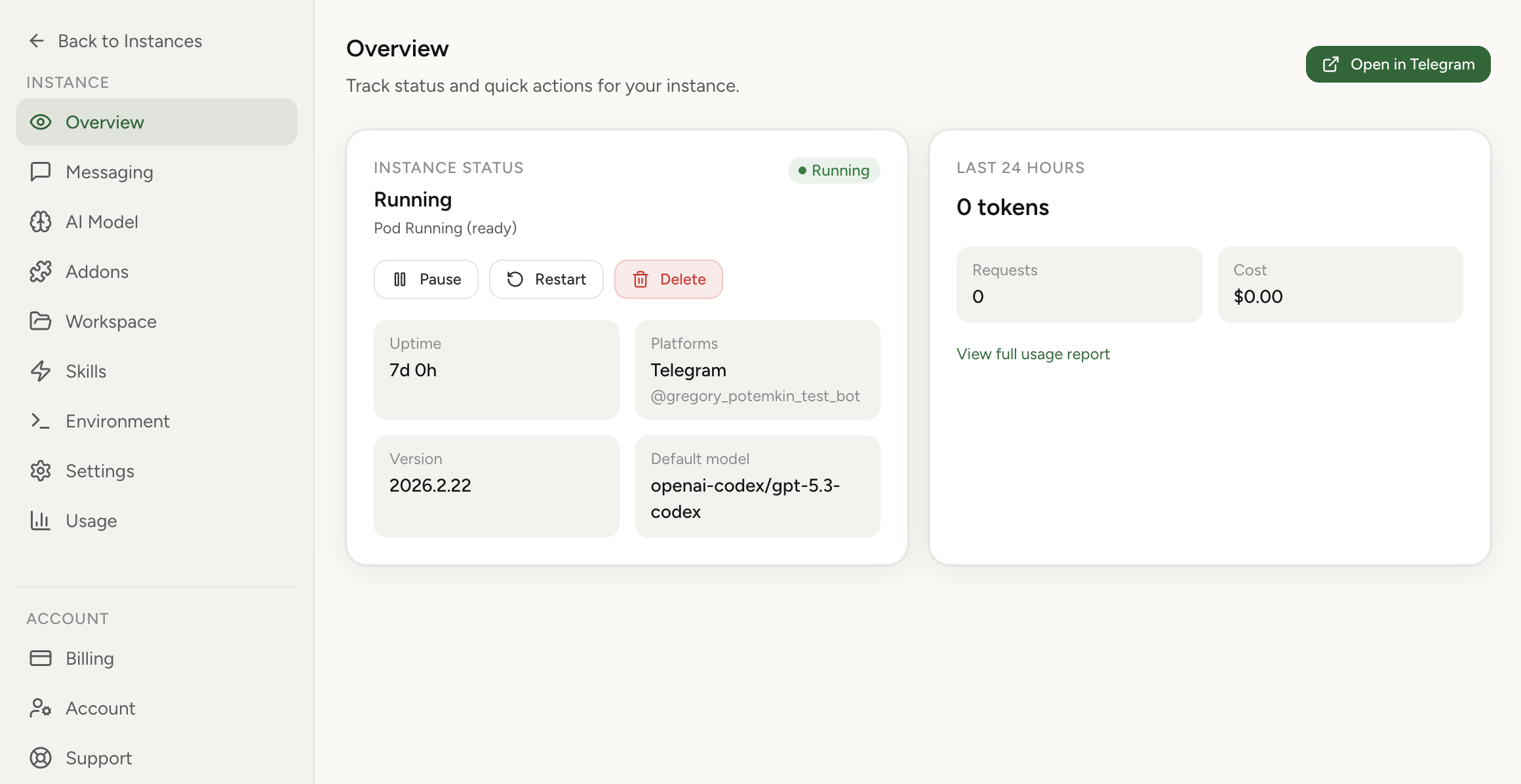
The managed dashboard provides simple toggle-based controls for pausing or deleting instances.
Stop babysitting your infrastructure. Start with the OpenClaw setup guide, then use managed OpenClaw hosting when local operations become too risky to maintain.