OpenClaw "session file locked" timeout fix
Your agent goes silent and chat shows⚠️ Agent failed before reply: session file locked (timeout 10000ms) — the gateway could not acquire the write lock for the session's .jsonl file, so the turn fails before any model can reply and every provider appears to be down at once. The fix: restart the gateway, and if the.jsonl.lock file persists with a dead owner PID, delete it.
Use this when logs or chat show "session file locked", "Agent failed before reply", or a stale lock at~/.openclaw/agents/main/sessions/<session-id>.jsonl.lock (the timeout in the banner is usually 10000ms; some setups report other values such as 60000ms). First confirm there is only one OpenClaw gateway writing to the session store. Then inspect the affected .jsonl.lock file, verify whether the owner PID is still alive and is really the expected gateway process, and restart the gateway cleanly. Remove a lock file only after the owner is dead or clearly stale; deleting an active lock can corrupt session history. Don't wait for the lock to clear itself: the lock wait gives up at 10 seconds, before the 30-second stale-lock eviction can run, so a dead owner's lock never self-heals — manual removal is the designed-in path.
Seeing a lock timeout on locks/oauth-refresh/*.lock instead? That is a different stale lock with a different fix — see theOAuth refresh contention stuck-lock fix.
- GitHub issue#31489(created 2026-03-02) reports cross-model failures caused by lock timeout.
- Community Q&A thread mirrors the same pattern in hosted environments:AnswerOverflow reference.
Why this error is operationally dangerous
The failure is easy to underestimate because it looks like a single model timeout. In reality, a locked session file can fail every downstream model call, including fallback providers. Teams often lose time debugging model keys, network, or provider quotas even though the bottleneck is local file locking.
This is exactly why this topic is high-intent: operators searching this error are typically in an active outage and need a reproducible, low-risk runbook. If that sounds familiar, keep this page open as your live checklist.
How OpenClaw session locking works
OpenClaw stores session history as JSONL files under~/.openclaw/agents/main/sessions/. During writes, it uses lock files (.jsonl.lock) to prevent concurrent corruption. That design is correct, but incidents happen when lock ownership and process lifecycle drift out of sync.
- One process holds lock too long (or never releases).
- Two gateway instances compete for the same session directory.
- Container restarts leave stale state that appears active.
- I/O pressure or filesystem latency stretches lock acquisition beyond 10s.
When this is a stale-lock incident
Treat the lock as stale only after evidence supports it. A dead PID, an impossible process start time, a lock timestamp older than the active gateway, or a lock owner command that no longer matches OpenClaw are stronger signals than the timeout text alone. If the PID is alive and still the gateway writer, this is contention or I/O pressure, not a stale lock.
10-minute diagnosis workflow
- Confirm the exact failure signature.
Search logs forsession file locked (timeout 10000ms)and note session ID plus lock path. - Validate only one gateway process/container is active.
Multiple instances against one session path are the #1 practical cause in self-hosted setups. - Inspect lock file owner metadata.
Open the lock file and capturepid+createdAtfor incident notes. - Check whether owner PID is alive and expected.
If PID is dead, you likely have stale lock state. If alive, verify it is the intended gateway process. - Measure local disk pressure.
Spikes in disk wait, saturated network filesystems, or overloaded hosts can create lock starvation. - Attempt controlled service restart.
Restart only the gateway instance and re-run one test session to validate write path recovery.
Safe recovery playbook
During an outage, the temptation is to delete lock files immediately. That can work, but it is risky if lock owner is still running. Use this sequence instead:
- Pause inbound traffic if possible (webhooks, high-volume channels).
- Take a fast snapshot/backup of
~/.openclaw/agents/main/sessions. - Restart gateway cleanly (container/service-level, not force-kill first).
- Retest with one controlled prompt.
- Only if lock persists and owner PID is dead or clearly stale, remove the specific lock file and retest.
- Document incident timeline and trigger conditions before traffic restore.
Move this OpenClaw instance to managed hosting
Reference commands
# 1) Locate lock files
find ~/.openclaw/agents/main/sessions -name "*.jsonl.lock" -maxdepth 2

# 2) Inspect lock metadata
cat ~/.openclaw/agents/main/sessions/<session-id>.jsonl.lock

# 3) Check whether lock owner PID is alive
ps -p <pid> -o pid,ppid,etime,cmd

# 4) Docker: verify no duplicate gateway containers
docker ps --format "table {{.Names}}	{{.Status}}" | grep -i openclaw

# 5) Restart gateway (example)
openclaw gateway restart
# or docker compose restart openclaw-gateway
Root-cause matrix: what to fix after service is restored
| Symptom | Likely cause | Permanent fix |
|---|---|---|
| Lock PID alive for hours | Hung write path / blocked I/O | Reduce host contention, monitor disk latency, schedule restarts during upgrades |
| Many lock files across sessions | Duplicate gateway processes | Enforce single-writer deployment model + health-check guardrails |
| Issue starts after upgrade/redeploy | Process handoff race, stale state | Blue/green rollout or graceful drain before restart |
| Random, hard to reproduce failures | Host-level saturation | Move to isolated host class or managed runtime with stronger SLOs |
Edge cases most guides ignore
1) PID exists, but it is the wrong process after restart
PIDs can be reused. If you only check "PID exists", you may conclude lock is valid when it is not. Verify command and uptime, not just number presence.
2) NFS or remote volume latency
Remote filesystems can amplify lock timing issues under bursty traffic. If your OpenClaw session storage is on shared network mounts, test with local disk to isolate.
3) Log truncation hides first lock failure
Teams often inspect only latest logs and miss the first warning event that started contention. Preserve enough history to identify trigger request and timeline.
Validation checklist: prove the fix actually worked
- No new
timeout 10000mslock errors for 30-60 minutes under normal traffic. - At least 10 test prompts across different sessions complete successfully.
- Fallback model path works (simulate provider failure, confirm graceful recovery).
- Single active gateway instance is enforced by runtime policy.
- On-call runbook updated with exact lock recovery criteria.
When to stop firefighting and switch operating model
If lock incidents recur weekly, your real bottleneck is not a single bug. It is operational complexity: process contention, host instability, and brittle incident handling. At that point, compare total engineering time spent on maintenance versus managed OpenClaw runtime.
Stop babysitting your OpenClaw box
Fix it once — or stop fixing it for good.
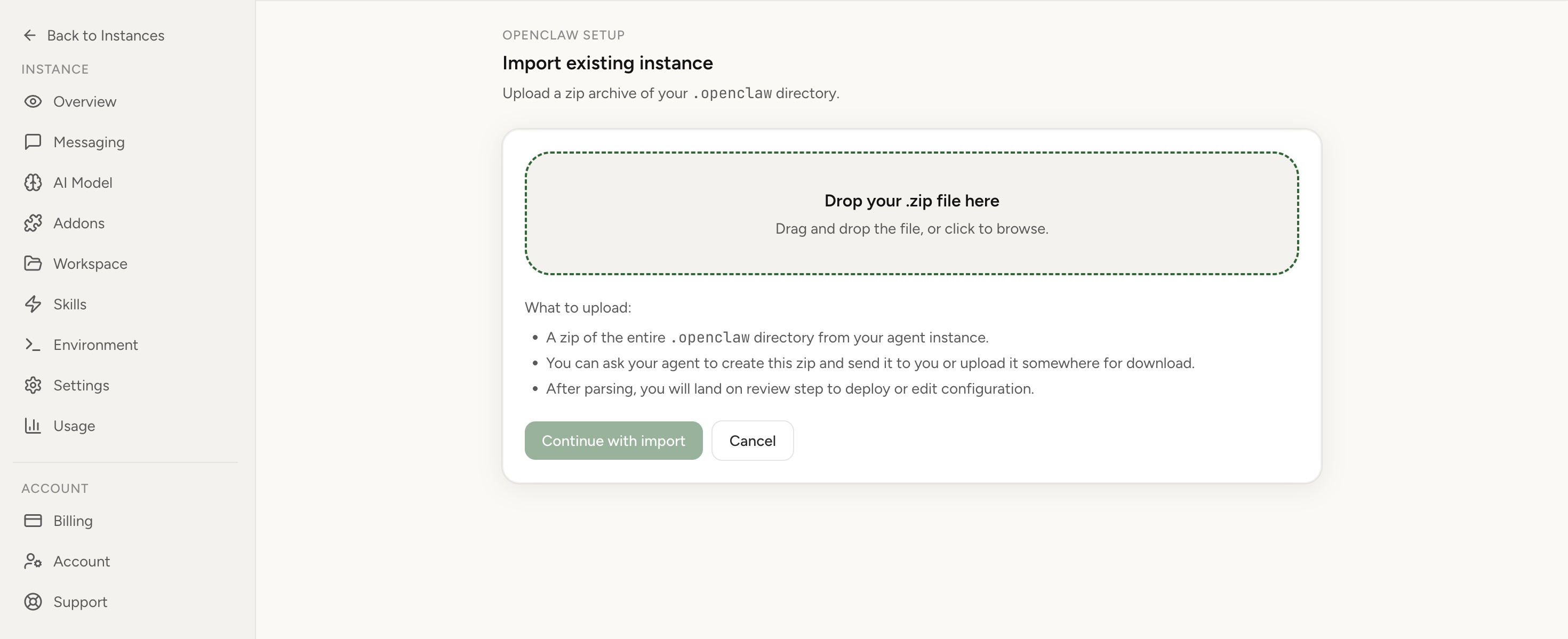
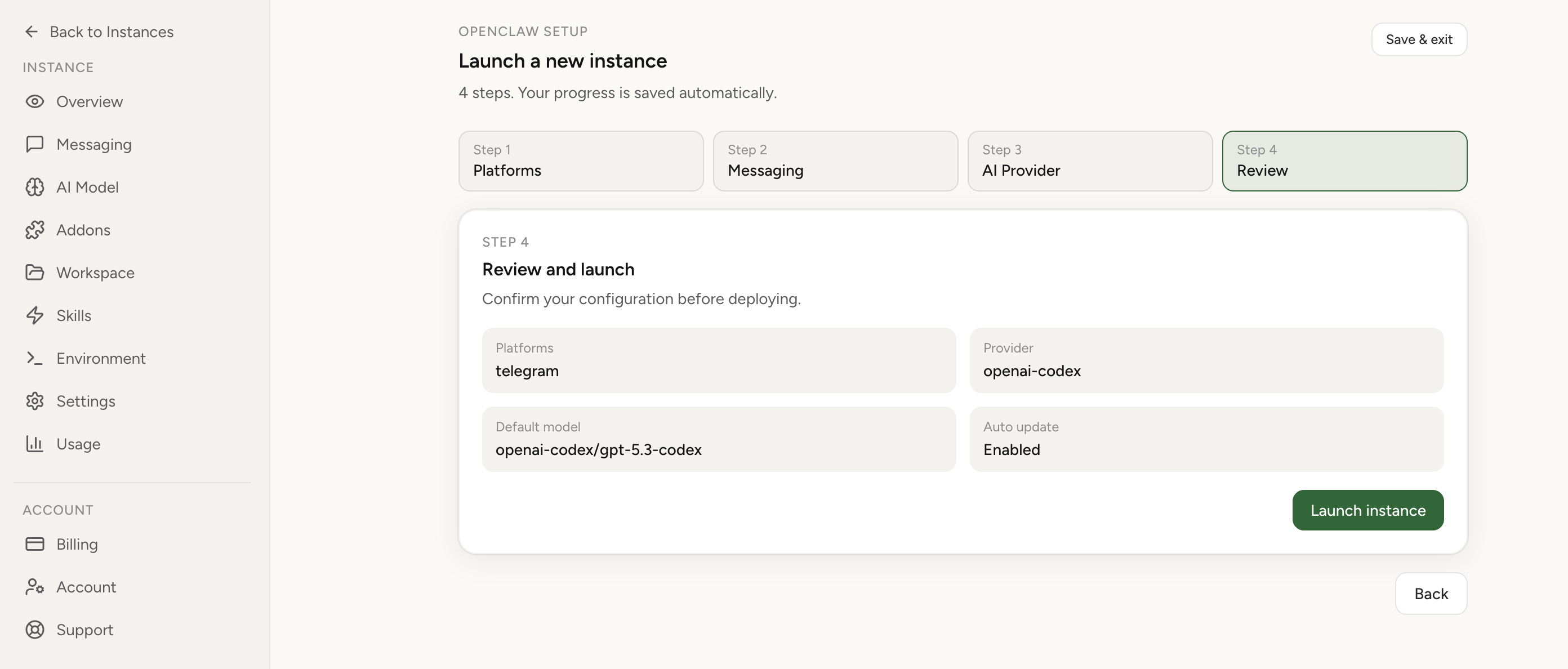
Apply the checklist above and keep self-hosting, or skip the maintenance entirely: run your OpenClaw on managed hosting from $6.90/mo, starting with a 7-day free trial. We handle the stale locks, gateway restarts, version upgrades, and uptime — and you can import your existing instance in a couple of minutes. Cancel anytime.
- Managed hosting handles stale
.jsonl.lockfiles, gateway restarts, and version upgrades for you - Import your existing OpenClaw setup in minutes — keep your channels and configuration
- The optional $199 setup is scoped: no custom development, enterprise/SRE support, or unsupported self-hosting repair
If you would rather compare options first, review OpenClaw cloud hosting or see the best OpenClaw hosting options before deciding.
See managed OpenClaw cloud hostingReview OpenClaw setup options
If you are comparing long-term hosting paths after this incident, use the hosting provider guide and the managed-vs-self-hosted comparison before committing more time to the same VPS.
Post-incident hardening plan
After immediate recovery, treat this as a reliability debt item, not a one-off glitch. Teams that close the ticket after restart almost always see recurrence. A practical hardening sprint looks like this:
- Day 1: add lock-timeout alerting from gateway logs and page on-call when threshold is hit.
- Day 2: enforce single-gateway ownership with process supervisor or deployment guard checks.
- Day 3: load-test concurrent sessions and measure lock wait distribution at p50/p95/p99.
- Day 4: document stale-lock criteria and exact human approval step for manual lock cleanup.
- Day 5: run controlled restart drill and verify no orphan lock artifacts are left behind.
- Day 6-7: decide whether to keep self-managed operations or migrate to managed runtime.
Postmortem template
- Trigger: first request/session that showed lock timeout.
- Impact: channels and users affected; total outage duration.
- Detection gap: how long until team noticed and why.
- Primary cause: duplicate process, lock leak, I/O saturation, or unknown.
- Contributing factors: version drift, missing canary tests, alerting blind spots.
- Corrective actions: owner, due date, measurable verification signal.
FAQ
Why does it say "Agent failed before reply: session file locked"?
That banner is the chat-facing form of the same lock timeout. OpenClaw writes each turn to the session's JSONL file before replying; when it cannot acquire the .jsonl.lock within the timeout, the turn aborts and every model appears to fail — so Telegram or the Control UI shows "Agent failed before reply" while the real problem is the local session lock.
Does this mean my model providers are broken?
Usually no. This specific error happens before provider calls complete, so multiple models can appear "down" while the root cause is local session-write locking.
Can I just increase timeout from 10000ms?
Increasing timeout can reduce symptom frequency but often hides structural contention. Use it only after fixing process duplication and storage bottlenecks.
Should I rotate session files aggressively?
Moderate retention helps, but rotation alone does not fix lock ownership bugs. Keep retention policy, plus single gateway guarantees and restart discipline.